Showing posts with label app. Show all posts
Showing posts with label app. Show all posts
Wednesday, March 11, 2015
Guest Post Integrating with Google Drive via a Chrome Web Store App
This post is prepared by Nina Gorbunova, Teamlab Office Marketing Manager
About Teamlab Personal
Teamlab Personal is a suite of online document editors free for individual use. Weve recently implemented two way integration with Google Drive and would like to share our experience.
Why Google Drive integration
Many of our users connect Google Drive to Teamlab, and we wanted to reach more by being in the Chrome Web Store. The availability of Google Drive SDK and Google Drive API helped us fit it all together. We thought: if a user can connect a Google Drive account to Teamlab Personal, why not build a return path? In the eyes of users, it is an enhancement of their Drive accounts. They get an opportunity to process documents using high formatting quality in browser and to make one more step away from desktop apps.
Integration goals
From the technical side, here is what we wanted to do:
As soon as youve installed Teamlab Personal from the Chrome Web Store, the integration automatically activates. Now, you can choose the Teamlab icon when creating new and editing the existing documents.
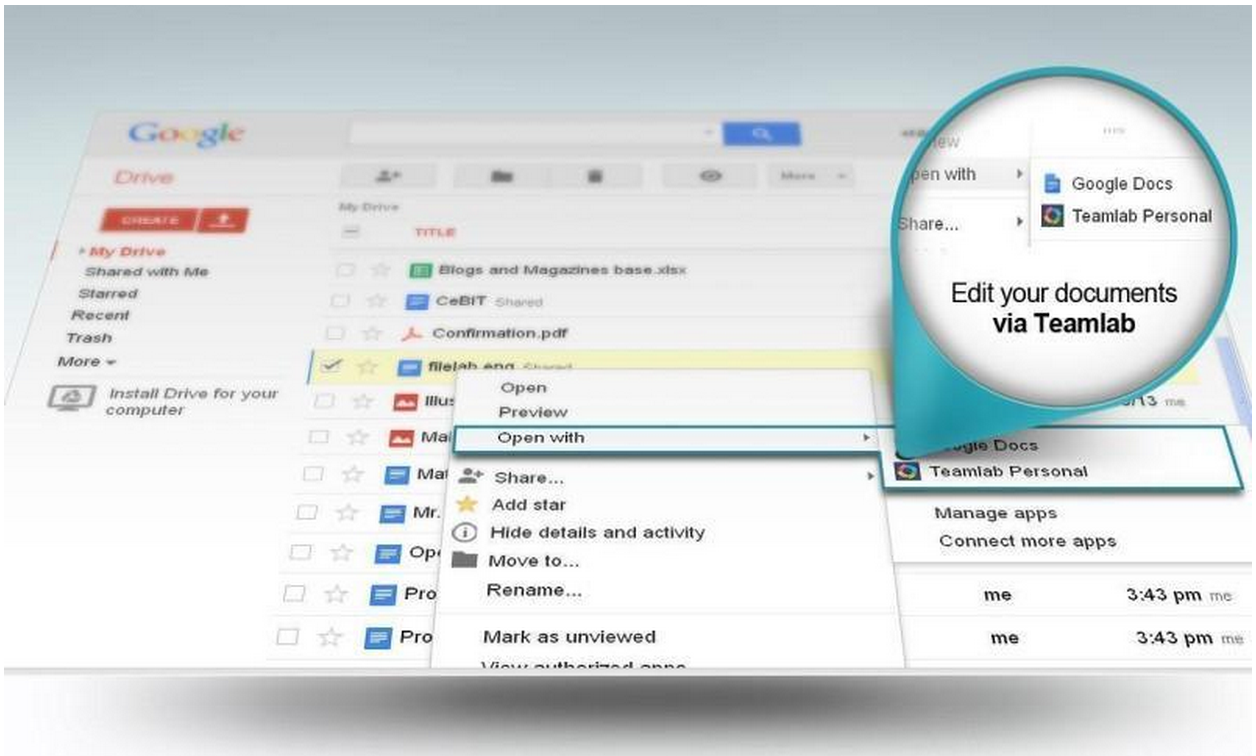
If the user selects the Teamlab editor as the default, .docx, .xlsx and .pptx files are opened in Teamlab automatically. For other documents, we create a copy in Office Open XML format which will be saved on Drive alongside the original.
Requests processing at personal.teamlab.com
When a file is opened or created on Google Drive using the Teamlab Personal application, the handler gets the request with the following parameters: "ids" ("folderId" if case of file creation), "action", "userId" and "code". The "code" parameter is used to get the authentication token via OAuth 2.0 protocol (with the help of the request to https://accounts.google.com/o/oauth2/token with the "client_id", "client_secret", "redirect_ur parameters", and the additional "grant_type=authorization_code" parameter from the developer console). The received token is used in the subsequent requests. The "ids" parameter is the file to be opened identifier which is sent to the https://www.googleapis.com/drive/v2/files/ address in JSON format. The returned "mimeType" and "downloadUrl" are used to get the file content. Thats all what is needed to open the document file in Office Open XML format (.docx, .xlsx or .pptx) in Teamlab.
Files in other formats are converted to the corresponding Office Open XML format and a copy is saved to the Drive folder prior to opening. In this case the "downloadUrl" is used to get the original file. The file is saved with the help of the POST request to the https://www.googleapis.com/upload/drive/v2/files address. In this request the "ContentType" is set as "multipart/related; boundary=boundary" and the request body contains the file information placed before the main request content.
Request code:
Conclusion
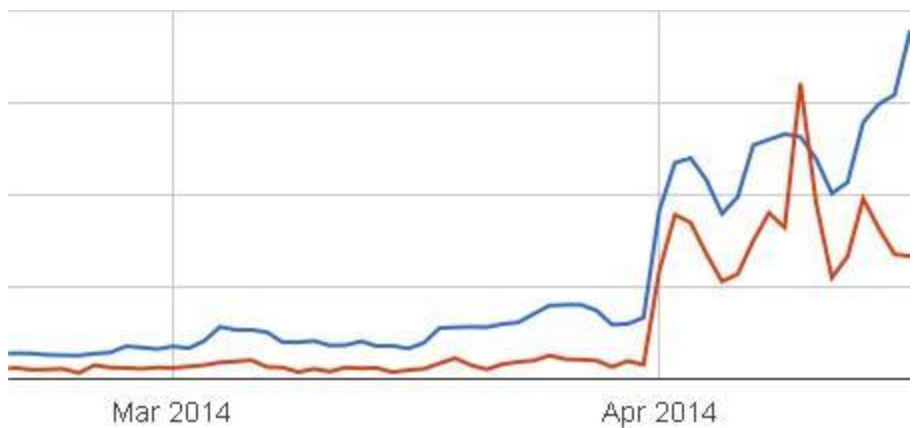
The "Works with Google Drive" label does its magic indeed. We strongly recommend other developers build a Chrome Web Store app, as the results are clear and valuable. We had a high jump in installs (see the graph below) after we completed our integration. Teamlab Personal website traffic doubled and we received more than enough of users’ feedback – great impact for further development.
About the author
Nina started her career at Teamlab in 2011 as an intern. She is now a Senior Marketing Manager at Teamlab Office.
Read more »
About Teamlab Personal
Teamlab Personal is a suite of online document editors free for individual use. Weve recently implemented two way integration with Google Drive and would like to share our experience.
Why Google Drive integration
Many of our users connect Google Drive to Teamlab, and we wanted to reach more by being in the Chrome Web Store. The availability of Google Drive SDK and Google Drive API helped us fit it all together. We thought: if a user can connect a Google Drive account to Teamlab Personal, why not build a return path? In the eyes of users, it is an enhancement of their Drive accounts. They get an opportunity to process documents using high formatting quality in browser and to make one more step away from desktop apps.
Integration goals
From the technical side, here is what we wanted to do:
- Integrate Teamlab editors and viewers with Google Drive.
- Provide co-editing opportunities.
- Enable file conversion and creating new files in the common Office Open XML format.
- Enable users to login with Google to use Teamlab Personal.
- We registered with Google’s developer console, added our project and connected the Drive API and Drive SDK to the app.
- Then we needed to decide what scopes our app needed to access the Google Drive API. We chose the minimal set, ample for us to access the files to edit without trespassing the user’s privacy (most users are not likely to provide full access to 3rd party apps)

- Because we work with traditional office apps, we chose docx, xlsx and pptx formats as default file extensions for our app. We also added secondary formats: ppt, pps, odp, doc, odt, rtf, txt, xls, csv, ods, mht, html, htm, fb2, epub, pdf, djvu.
- The current listing for the pre-existing app, we modified the code and added the following to the manifest: "container" : "GOOGLE_DRIVE","api_console_project_id" : "YOUR_APP_ID". Once a user installs Teamlab Personal app from Chrome Web Store, it automatically connects to their Google Drive account.
- Finally, Teamlab Personal uses OAuth 2.0 for authorization and file access. The application processes requests for creating and opening files.
As soon as youve installed Teamlab Personal from the Chrome Web Store, the integration automatically activates. Now, you can choose the Teamlab icon when creating new and editing the existing documents.
If the user selects the Teamlab editor as the default, .docx, .xlsx and .pptx files are opened in Teamlab automatically. For other documents, we create a copy in Office Open XML format which will be saved on Drive alongside the original.
Requests processing at personal.teamlab.com
When a file is opened or created on Google Drive using the Teamlab Personal application, the handler gets the request with the following parameters: "ids" ("folderId" if case of file creation), "action", "userId" and "code". The "code" parameter is used to get the authentication token via OAuth 2.0 protocol (with the help of the request to https://accounts.google.com/o/oauth2/token with the "client_id", "client_secret", "redirect_ur parameters", and the additional "grant_type=authorization_code" parameter from the developer console). The received token is used in the subsequent requests. The "ids" parameter is the file to be opened identifier which is sent to the https://www.googleapis.com/drive/v2/files/ address in JSON format. The returned "mimeType" and "downloadUrl" are used to get the file content. Thats all what is needed to open the document file in Office Open XML format (.docx, .xlsx or .pptx) in Teamlab.
Files in other formats are converted to the corresponding Office Open XML format and a copy is saved to the Drive folder prior to opening. In this case the "downloadUrl" is used to get the original file. The file is saved with the help of the POST request to the https://www.googleapis.com/upload/drive/v2/files address. In this request the "ContentType" is set as "multipart/related; boundary=boundary" and the request body contains the file information placed before the main request content.
Request code:
string CreateFile(Stream content, string fileName, string mimeType, string folderId, string accessToken){
    var bytes = Encoding.UTF8.GetBytes(
        "

--boundary

Content-Type: application/json; charset=UTF-8


{"title":""
        + fileName + "","parents":[{"id":"" + folderId + ""}]}"
        + "

--boundary

Content-Type: " + mimeType + "


");

    var tmpStream = new MemoryStream();
    tmpStream.Write(bytes, 0, bytes.Length);
    content.CopyTo(tmpStream);

    bytes = Encoding.UTF8.GetBytes("

--boundary--

");
    tmpStream.Write(bytes, 0, bytes.Length);

    var request = WebRequest.Create("https://www.googleapis.com/upload/drive/v2/files?uploadType=multipart");
    request.Method = "POST";
    request.Headers.Add("Authorization", "Bearer " + accessToken);
    request.ContentType = "multipart/related; boundary=boundary";
    request.ContentLength = tmpStream.Length;

    var buffer = new byte[2048];
    int readed;
    tmpStream.Seek(0, SeekOrigin.Begin);
    while ((readed = tmpStream.Read(buffer, 0, 2048)) > 0) {
        request.GetRequestStream().Write(buffer, 0, readed);
    }
    return request.GetResponse().GetResponseStream();
}
Conclusion
The "Works with Google Drive" label does its magic indeed. We strongly recommend other developers build a Chrome Web Store app, as the results are clear and valuable. We had a high jump in installs (see the graph below) after we completed our integration. Teamlab Personal website traffic doubled and we received more than enough of users’ feedback – great impact for further development.
Google Chrome Web Store Impressions&Installations Statistics. Launch - April.
About the author
Nina started her career at Teamlab in 2011 as an intern. She is now a Senior Marketing Manager at Teamlab Office.

Getting Started with the Tasks API on Google App Engine
Last month, we launched the Google Tasks API, which received a very warm welcome in the developer community. Google Tasks stores tasks that users enter via Gmail, their mobile device, calendar, or iGoogle homepage. The Google Tasks API provides developers with a powerful set of API endpoints for searching, reading, and updating Google Tasks content and metadata.
To help all of you get started using the Google Tasks API, we wrote a new hands-on tutorial: Getting Started with the Tasks API on Google App Engine. In this tutorial, you will learn how to:
By the end of the tutorial, you’ll have an App Engine app that creates a stylized list of tasks for a specific user delivered from the Tasks API:

Check out the tutorial and ask any questions you have in the Google Tasks API forum.
Want to weigh in on this topic? Discuss on Buzz
Read more »
To help all of you get started using the Google Tasks API, we wrote a new hands-on tutorial: Getting Started with the Tasks API on Google App Engine. In this tutorial, you will learn how to:
- Create a simple App Engine app using the Google APIs Client Library.
- Provide Google Tasks users a mechanism to authorize your app to access their tasks.
- Make authorized requests to the Tasks API.
By the end of the tutorial, you’ll have an App Engine app that creates a stylized list of tasks for a specific user delivered from the Tasks API:
Check out the tutorial and ask any questions you have in the Google Tasks API forum.
 | Johan Euphrosine profile | twitter | events Johan joined Google in 2011 as a Developer Programs Engineer based in Zurich. He is currently focusing on App Engine and Google Apps APIs. Before Google, Johan was providing development services as a Freelancer around FLOSS. |
Want to weigh in on this topic? Discuss on Buzz
Wednesday, February 4, 2015
Creating a Flex AIR Annotator app Part 2
In this part we will add functionality to import a picture to our application.
First, lets change the content of our VGroup.
The text we had before will be changed with a BigButton component (a custom component). However, well include it in a ViewStack as well. Give the stack an id of "stack" and set change event handelr to stackChange(). Add 2 NavigatorContent objects for now - one containing our BigButton control and another containing an mx:Image control with an id of imgHolder.
Now, more about the BigButton object. It has an icon property which works the same way that icons in IconButton works. We direct it to a folder.png picture in the lib folder, which is this picture:

We also give it a subtext property with a value of "Import picture". Two more unusual properties are bWidth and bHeight. Set those to 300 and 200 (the same size that drawArea is for now). Add an event listener for the click event - set handler to importPicture().
Lets create this BigButton component. Create a new file called BigButton.mxml. Its based off spark:Button, and has a skin of bigSkin. Add the 4 properties to the class:
Now create another file called bigSkin.mxml. It basically consists of a VGroup with a picture and the text in it:
Now go back to Main.mxml.
Create a function called importPicture(), the one thats called when the button is pressed.
Here we create a new File object, an ImageFilter, and use the files browseForOpen() method to let the user import a picture:
The fileSelect() function, which is the event handler for files SELECT event uses a Loader class to load the image with the provided url:
The loadComplete() function takes data from the loaders content and creates a BitmapData out of it. Then the selectedIndex of stack is set to 1:
Now create a function called stackChange(), which is called when the selectedIndex of the stack changes. Add a conditional checking if the index is 1, if it is - set the images source to a Bitmap object with our bitmapData, and set the size of drawArea and imgHolder to size of content.
And there we go.
Thanks for reading!
Read more »
First, lets change the content of our VGroup.
The text we had before will be changed with a BigButton component (a custom component). However, well include it in a ViewStack as well. Give the stack an id of "stack" and set change event handelr to stackChange(). Add 2 NavigatorContent objects for now - one containing our BigButton control and another containing an mx:Image control with an id of imgHolder.
Now, more about the BigButton object. It has an icon property which works the same way that icons in IconButton works. We direct it to a folder.png picture in the lib folder, which is this picture:
We also give it a subtext property with a value of "Import picture". Two more unusual properties are bWidth and bHeight. Set those to 300 and 200 (the same size that drawArea is for now). Add an event listener for the click event - set handler to importPicture().
<s:VGroup width="100%" height="100%" gap="0">
<mx:HBox backgroundColor="#ccccdd" width="100%" height="68">
<custom:IconButton icon="@Embed(../lib/bubble.png)" toolTip="Annotation" enabled="true" buttonMode="true" />
<custom:IconButton icon="@Embed(../lib/bubble.png)" toolTip="Annotation" enabled="false" buttonMode="true" />
</mx:HBox>
<mx:Canvas width="100%" height="100%" horizontalScrollPolicy="on" verticalScrollPolicy="on">
<mx:Box backgroundColor="#eeeeee" width="100%" height="100%" verticalAlign="middle" horizontalAlign="center" horizontalScrollPolicy="off" verticalScrollPolicy="off">
<mx:Box id="drawArea" backgroundColor="#ffffff" width="300" height="200" horizontalScrollPolicy="off" verticalScrollPolicy="off">
<mx:ViewStack id="stack" change="stackChange();">
<s:NavigatorContent>
<custom:BigButton icon="@Embed(../lib/folder.png)" subtext="Import picture" toolTip="Open file" enabled="true" buttonMode="true" bWidth="300" bHeight="200" click="importPicture();" />
</s:NavigatorContent>
<s:NavigatorContent>
<mx:Image id="imgHolder" />
</s:NavigatorContent>
</mx:ViewStack>
</mx:Box>
</mx:Box>
</mx:Canvas>
</s:VGroup>
Lets create this BigButton component. Create a new file called BigButton.mxml. Its based off spark:Button, and has a skin of bigSkin. Add the 4 properties to the class:
<?xml version="1.0" encoding="utf-8"?>
<s:Button xmlns:fx="http://ns.adobe.com/mxml/2009" xmlns:s="library://ns.adobe.com/flex/spark" xmlns:mx="library://ns.adobe.com/flex/mx" skinClass="bigSkin">

<fx:Metadata>
[Style(name="icon",type="*")]
[Style(name="subtext",type="*")]
[Style(name="bWidth",type="*")]
[Style(name="bHeight",type="*")]
</fx:Metadata>

</s:Button>
Now create another file called bigSkin.mxml. It basically consists of a VGroup with a picture and the text in it:
<?xml version="1.0" encoding="utf-8"?>
<s:SparkSkin name="iconSkin"
        xmlns:fx="http://ns.adobe.com/mxml/2009"
        xmlns:s="library://ns.adobe.com/flex/spark"
        minWidth="128" minHeight="128"
        alpha.disabled="0.5">

    <s:states>
        <s:State name="up" />
        <s:State name="over" />
        <s:State name="down" />
        <s:State name="disabled" />
    </s:states>

    <fx:Metadata>
        [HostComponent("spark.components.Button")]
    </fx:Metadata>

    <s:Rect width="{hostComponent.getStyle(bWidth)}" height="{hostComponent.getStyle(bHeight)}" alpha.up="0" alpha.over="0.4" alpha.disabled="0">
<s:fill>
<s:SolidColor color="#ababef"/>
</s:fill>
</s:Rect>
<s:VGroup width="{hostComponent.getStyle(bWidth)}" height="{hostComponent.getStyle(bHeight)}" horizontalAlign="center" verticalAlign="middle">
<s:BitmapImage source="{hostComponent.getStyle(icon)}" top="2" right="2" left="2" bottom="2" alpha.disabled="0.5" />
<s:Label fontSize="24" color="#6666ff" text="{hostComponent.getStyle(subtext)}" />
</s:VGroup>

</s:SparkSkin>
Now go back to Main.mxml.
Create a function called importPicture(), the one thats called when the button is pressed.
Here we create a new File object, an ImageFilter, and use the files browseForOpen() method to let the user import a picture:
private function importPicture():void {
var file:File = new File();
var imageFilter:FileFilter = new FileFilter("Images", "*.jpg;*jpeg;*.gif;*.png");
file.browseForOpen("Import picture", [imageFilter]);
file.addEventListener(Event.SELECT, fileSelect);
}
The fileSelect() function, which is the event handler for files SELECT event uses a Loader class to load the image with the provided url:
private function fileSelect(evt:Event):void {
var file:File = evt.target as File;
var loader:Loader = new Loader();
loader.contentLoaderInfo.addEventListener(Event.COMPLETE, loadComplete);
loader.load(new URLRequest(file.url));
}
The loadComplete() function takes data from the loaders content and creates a BitmapData out of it. Then the selectedIndex of stack is set to 1:
private function loadComplete(evt:Event):void {
content = evt.target.content;
bitmapData = new BitmapData(content.width, content.height, false);
bitmapData.draw(content, new Matrix(), null, null, null, true);
stack.selectedIndex = 1;
}
Now create a function called stackChange(), which is called when the selectedIndex of the stack changes. Add a conditional checking if the index is 1, if it is - set the images source to a Bitmap object with our bitmapData, and set the size of drawArea and imgHolder to size of content.
private function stackChange():void {
if (stack.selectedIndex == 1) {
imgHolder.source = new Bitmap(bitmapData);
drawArea.width = content.width;
drawArea.height = content.height;
imgHolder.width = content.width;
imgHolder.height = content.height;
}
}
And there we go.
<?xml version="1.0" encoding="utf-8"?>
<s:WindowedApplication xmlns:fx="http://ns.adobe.com/mxml/2009"
   xmlns:s="library://ns.adobe.com/flex/spark"
   xmlns:mx="library://ns.adobe.com/flex/mx"
   xmlns:custom="*"
   showStatusBar="false"
   creationComplete="init();" minWidth="400" minHeight="400"
   width="600" height="500">

<fx:Declarations>
<!-- Place non-visual elements (e.g., services, value objects) here -->
</fx:Declarations>

<fx:Script>
<![CDATA[
import flash.display.Bitmap;
import flash.display.BitmapData;
import flash.display.FocusDirection;
import flash.display.Loader;
import flash.events.Event;
import flash.filesystem.File;
import flash.filesystem.FileStream;
import flash.filters.DropShadowFilter;
import flash.geom.Matrix;
import flash.net.FileFilter;
import flash.net.URLRequest;
import flash.utils.ByteArray;
import mx.controls.Alert;
import flash.filesystem.FileMode;

private var bitmapData:BitmapData;
private var content:*;

private function init():void{
drawArea.filters = [new DropShadowFilter(4, 60, 0, 0.7, 10, 10, 1, 3)];
}

private function importPicture():void {
var file:File = new File();
var imageFilter:FileFilter = new FileFilter("Images", "*.jpg;*jpeg;*.gif;*.png");
file.browseForOpen("Import picture", [imageFilter]);
file.addEventListener(Event.SELECT, fileSelect);
}

private function fileSelect(evt:Event):void {
var file:File = evt.target as File;
var loader:Loader = new Loader();
loader.contentLoaderInfo.addEventListener(Event.COMPLETE, loadComplete);
loader.load(new URLRequest(file.url));
}

private function loadComplete(evt:Event):void {
content = evt.target.content;
bitmapData = new BitmapData(content.width, content.height, false);
bitmapData.draw(content, new Matrix(), null, null, null, true);
stack.selectedIndex = 1;
}

private function stackChange():void {
if (stack.selectedIndex == 1) {
imgHolder.source = new Bitmap(bitmapData);
drawArea.width = content.width;
drawArea.height = content.height;
imgHolder.width = content.width;
imgHolder.height = content.height;
}
}
]]>
</fx:Script>

<s:VGroup width="100%" height="100%" gap="0">
<mx:HBox backgroundColor="#ccccdd" width="100%" height="68">
<custom:IconButton icon="@Embed(../lib/bubble.png)" toolTip="Annotation" enabled="true" buttonMode="true" />
<custom:IconButton icon="@Embed(../lib/bubble.png)" toolTip="Annotation" enabled="false" buttonMode="true" />
</mx:HBox>
<mx:Canvas width="100%" height="100%" horizontalScrollPolicy="on" verticalScrollPolicy="on">
<mx:Box backgroundColor="#eeeeee" width="100%" height="100%" verticalAlign="middle" horizontalAlign="center" horizontalScrollPolicy="off" verticalScrollPolicy="off">
<mx:Box id="drawArea" backgroundColor="#ffffff" width="300" height="200" horizontalScrollPolicy="off" verticalScrollPolicy="off">
<mx:ViewStack id="stack" change="stackChange();">
<s:NavigatorContent>
<custom:BigButton icon="@Embed(../lib/folder.png)" subtext="Import picture" toolTip="Open file" enabled="true" buttonMode="true" bWidth="300" bHeight="200" click="importPicture();" />
</s:NavigatorContent>
<s:NavigatorContent>
<mx:Image id="imgHolder" />
</s:NavigatorContent>
</mx:ViewStack>
</mx:Box>
</mx:Box>
</mx:Canvas>
</s:VGroup>

</s:WindowedApplication>
Thanks for reading!
Subscribe to:
Posts (Atom)